Track-IT! Online IT Support Request and Tracking System
for staff and faculty
draft 25 April 2008Quick Start Instructions
Contents
Connecting to Track-IT!
Track-IT! Sign In, User Name and Password
Your Track-IT Home Page
Creating a Work Order
Viewing your work orders
Updating or closing your work orders
Solutions
Help on TI
This semester Information Technology
Resources introduces Track-IT!,
an online IT request and tracking system from NUMARA.
Using
Track-IT!’s web-based component, staff and faculty can
electronically submit technology-related problems and requests for
service known as "work
orders.". In addition to opening
work orders, Track-IT! users can update
and close their own work orders, and will receive a notification via
email when a work order is opened and when it is completed.
If Track-IT! is
not
yet available to you or if you prefer other means of reporting
problems, you can still contact the IT Center Help Desk by telephone
at (718) 960-1111, by email at helpdesk@lehman.cuny.edu or
in person in Carman Hall, room 108.
Work orders will be entered on your behalf by IT staff.
Connecting to Track-IT!
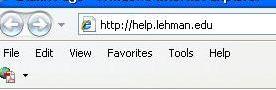
The application is known to work with
all
the popular Windows and Apple Macintosh browsers. (The screen
images in this document were created in Internet Explorer 7.)
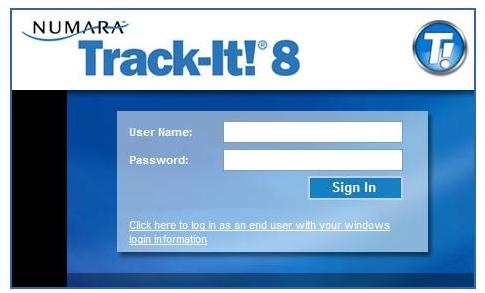
:
Track-IT! Sign In, User Name and Password
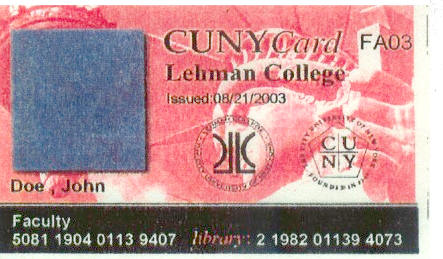
In order to use Track-IT! you need a Track-It! username and password. Your username is formed from the last eight digits of your CUNYCard id. Your CUNYCard id is embossed along the lower left edge of your CUNYCard just beneath "Staff" or "Faculty." Do not include the space between the two strings of four digits.
At this time we are unable to reliably identify the CUNYCard id numbers of Research Foundation staff and certain other categories of staff working on the Lehman campus. Consequently, these staff are not yet in the Track-IT! system. Individuals without Track-IT! access should continue to contact the Help Desk or the technical coordinators of their respective College divisions until these problems are resolved.
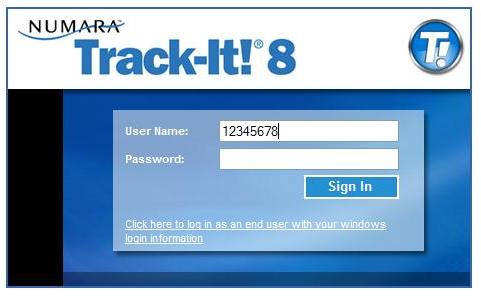
Your initial password is blank.
Do not
enter
any characters in the password field the first time you log in.
Enter only
your eight digit username and then click the Sign In button.
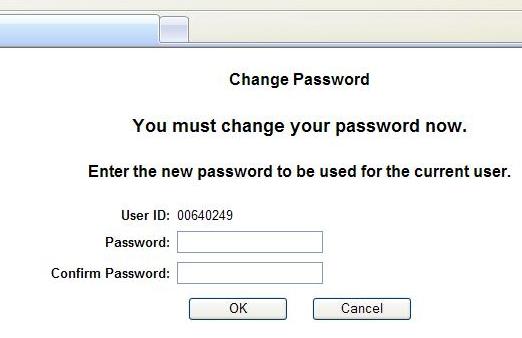
Create a new password of at least six
alphanumeric characters and click on OK When you login the next
time, use your new
password.
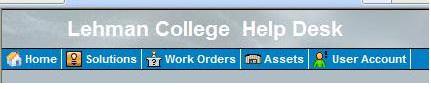
To change your password at any time, select the User Account button and then click the Change Password link.
Your Track-IT! Home Page
After successfully logging in, your
Track-IT!
home
page will display:
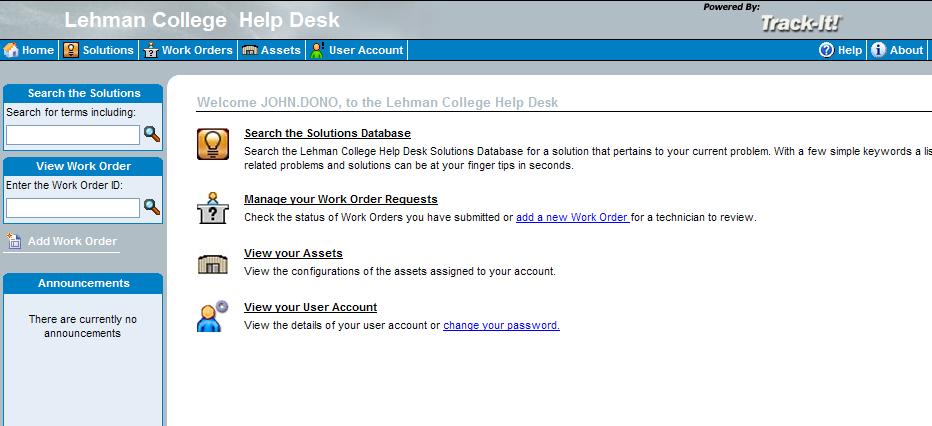
The Assets component of Track-IT! is not available and will not be discussed in the remainder of this document.
Wherever you are in Track-IT!, the blue
menu bar beneath the "Lehman College Help Desk" banner will remain on
the screen so you can always return Home, search for
Solutions, manage Work Orders and view and change your account
information from anywhere in Track-IT!.
The Announcement box in the lower left
corner of the home
page will be used to post timely information on IT at Lehman including
system downtimes and maintenance, system upgrades and special events.
Creating a work order
Click on the add a new Work Order on the Track-IT! home page:
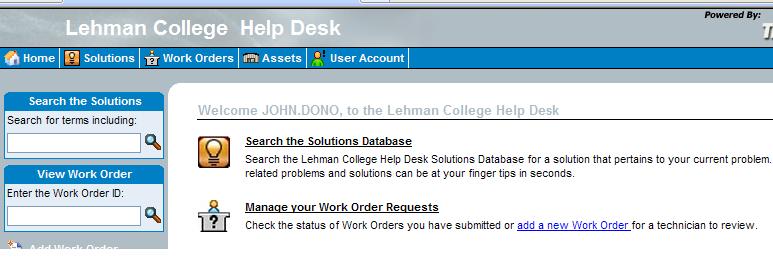
The work order form, reproduced below, will appear. Accurate completion of the form will help us properly route and thereby resolve your problem on a timely basis.
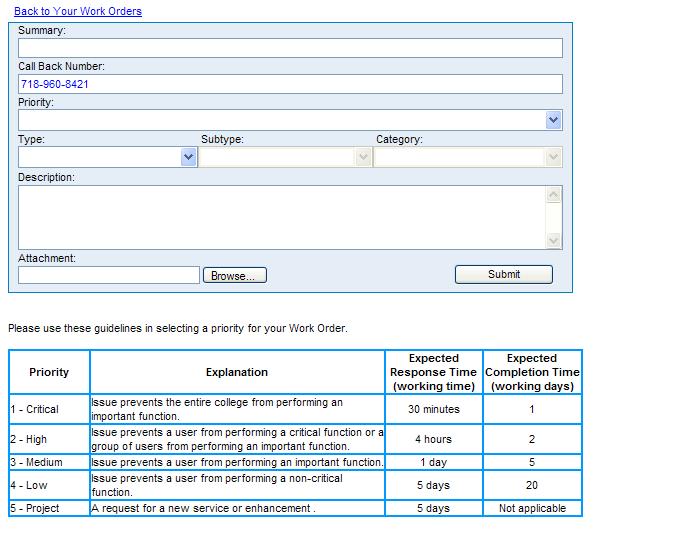
Summary Include a brief description of the problem. Include a few key words that best describes the problem or request
Paper jam in HP Laserjet 2100 in Registrar's Office
Email authentication failure with user name firstname.lastname
Request to install Office 2008 Professional for Windows
Request to install network circuit in Carman B38
SAS 9.1 license expired
Dell OptiPlex 270 will not turn on in Shuster 230
Call Back Number Change if incorrect or add if blank
Priority See guide below work order creation form.
Type In most cases you should select from the drop down list the division or department of the College in which you work. This will facilitate the routing of the problem to the technician assigned to your office. That person is in the best position to make an initial assessment of the problem and reassign it to another staff person if appropriate.
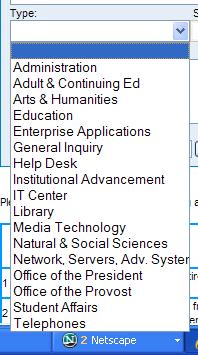
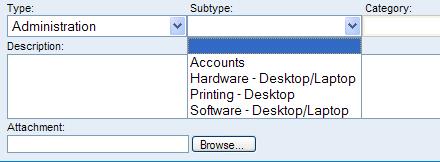
Subtype Select from the drop down list the subtype that best describes the request or problem.
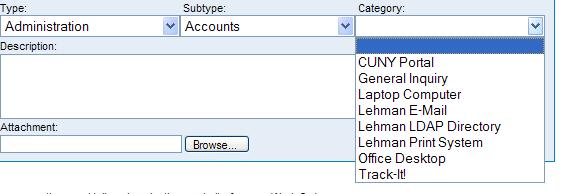
Category Category provides greater detail in classifying your problem or request. If none of the categories apply, you can leave this item blank.
Description Include additional details about the problem and the user(s) affected, department, alternate email address and phone number, building and room number, secondary contact, and where relevant, the text of error messages, circumstances under which they occur, software versions, hardware model numbers, efforts made so far to resolve the problem etc.
Attachment You can attach supporting documents such as an image of the screen showing the error that might be helpful in resolving the problem.
Click on Submit to create the work order.
You will receive a confirmation such as
the following that will include a work order number. Refer to
this work order number when following up on the order.
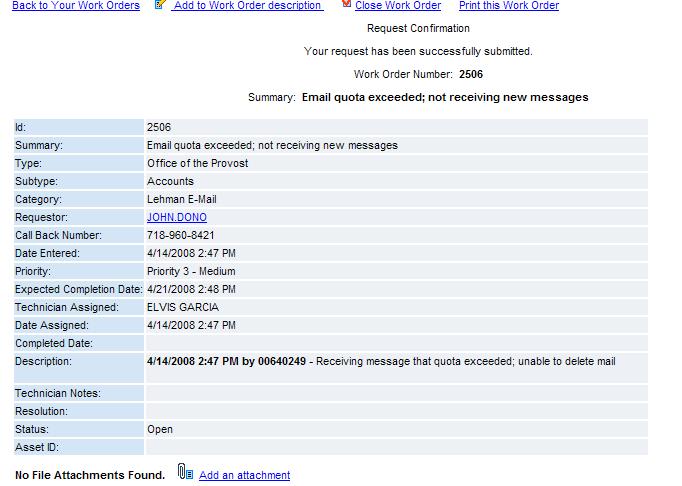
You can add to the work order
description, close the work
order or print while viewing a
work order.
You will also receive confirmation via
email such as the one reproduced below. These messages are
automatically generated and are intended for informational purposes
only. You should not reply to the confirmation
message. Save it for future reference.
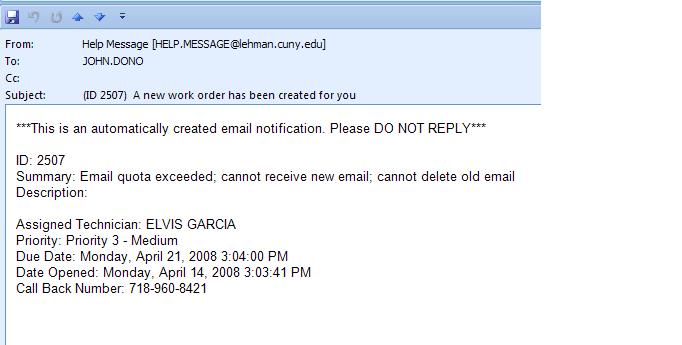
You will also receive a similar email notification if a work order is submitted on your behalf by IT staff.
Viewing
and Managing your work orders
Click on Manage
your work order requests on the Track-IT! home page or the Work Orders button in the menu
bar that appears on all Track-IT! pages. By default a list of all
open work orders
initiated by you or on your behalf will be displayed.
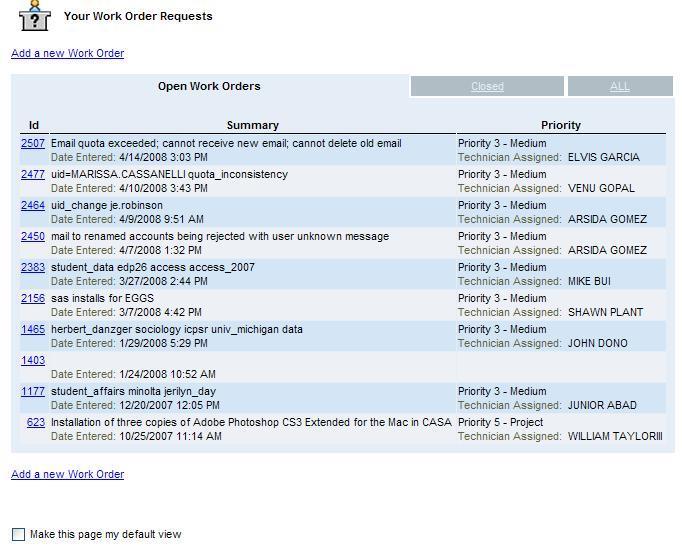
By default the Track-IT! home page is displayed after login. Selecting the check box to the left of Make this page my default view will cause the list of open work orders to appear immediately after logging in.
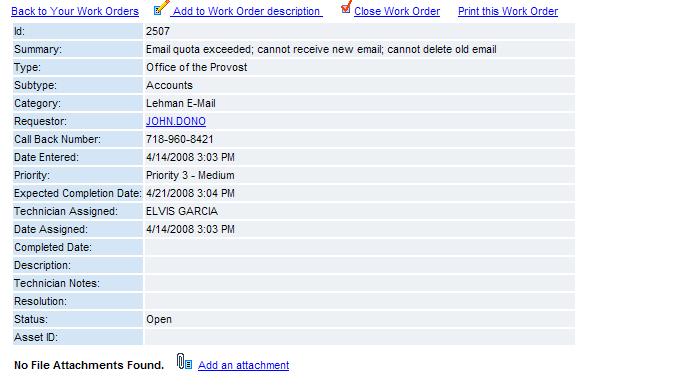
You can update or close a work order by clicking on the work order id number.
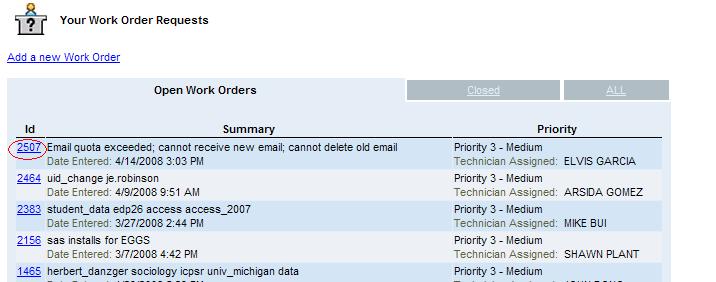
With the work order displayed click on the link Add to Work Order description to add
pertinent information to the work order, e.g. change in error messages,
pattern etc.. Click on the Close Work Order link to complete the
work order if you resolved the problem on your own or the request is no
longer relevant.
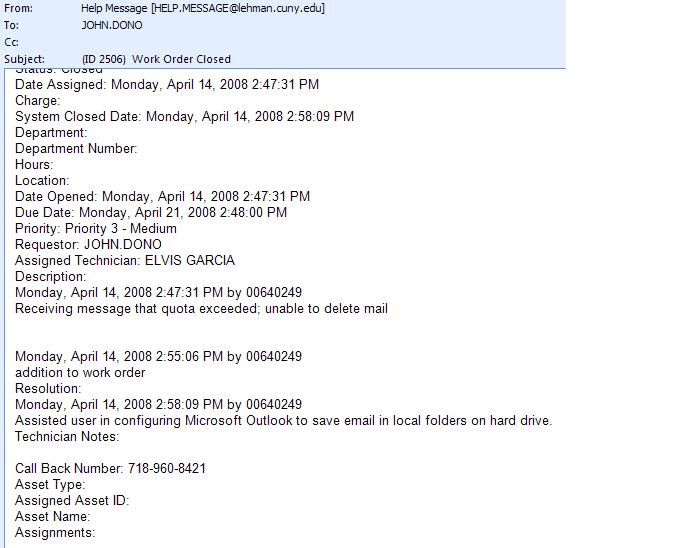
If a work order is closed by you or by
a technician, you will receive an email message similar to the
following:
Solutions
In addition to submitting and managing
work orders, Track-IT! includes a knowledge database to assist
both you and the technicians in the resolution of your problems.
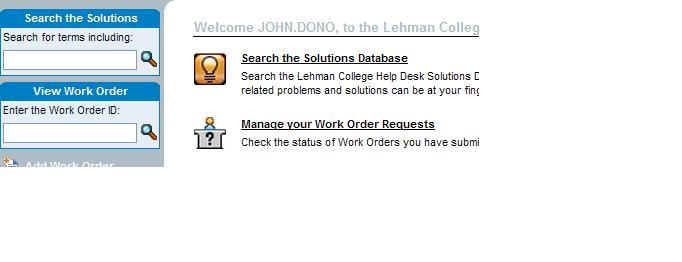
Access the database by clicking on the Solutions button on the
menu bar from any Track-IT! page or from the Search the Solutions
Database link or the Search box.
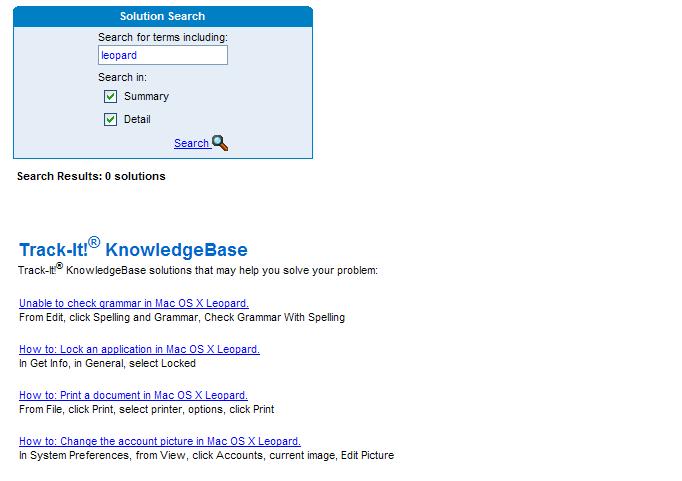
A user interested in Leopard, the new Macintosh operating
system, could do the following search.
Help with
Track-IT
If
you would like additional
information about Track-IT! click on Help on the right side of the
Track-IT! menu bar. For further assistance contact the IT Center Help Desk by email at helpdesk@lehman.cuny.edu, by telephone at (718) 960-1111 or in person in Carman Hall, Room 108.