






How to Add Your New Student Email to the Outlook App (iPhone)

Before You Begin 

These instructions are for adding the new student email to your iPhone Outlook app using the Phone MFA verification factor.

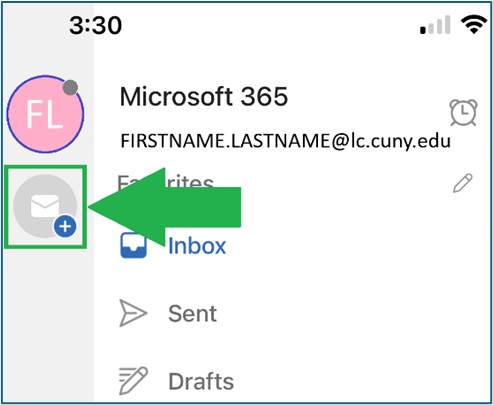
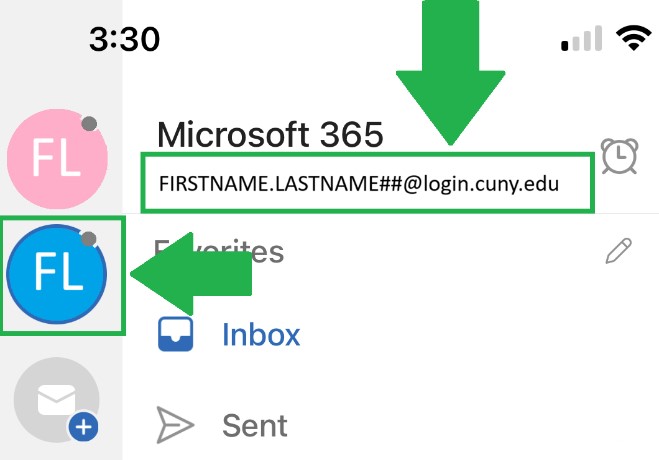
In your Outlook desktop app, in the top left-hand section, under your previous lc.cuny.edu email, click on the Add icon

Add New Student Email to Outlook App on iPhone Step 1

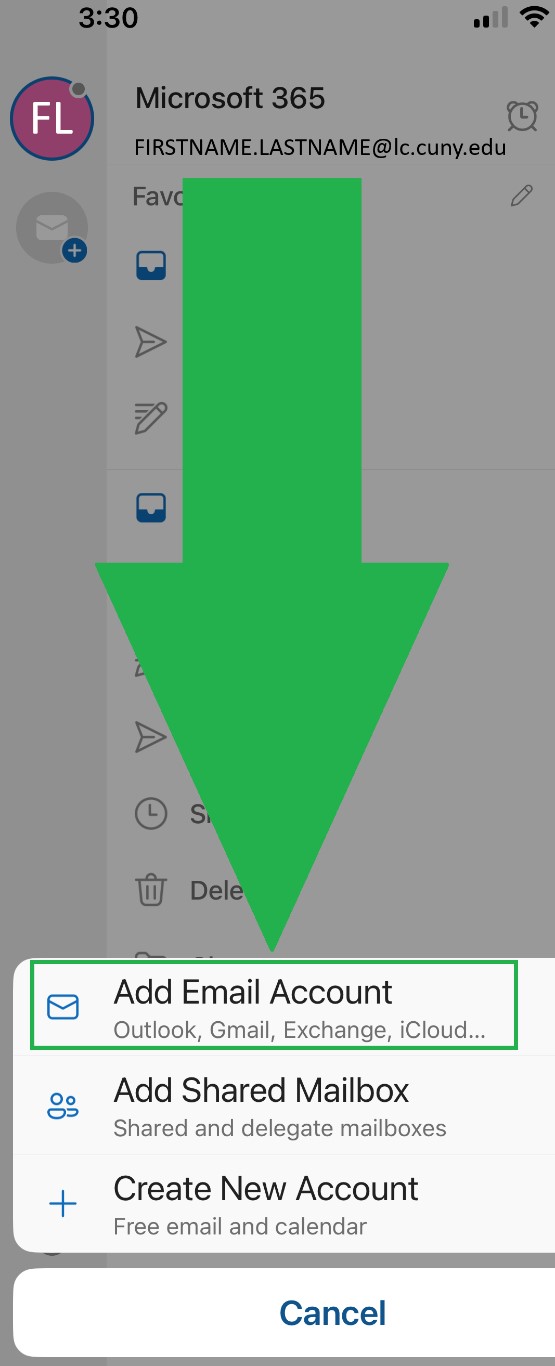
At the bottom left of your screen, click on Add Email Account.
Add New Student Email to Outlook App on iPhone  Step 2

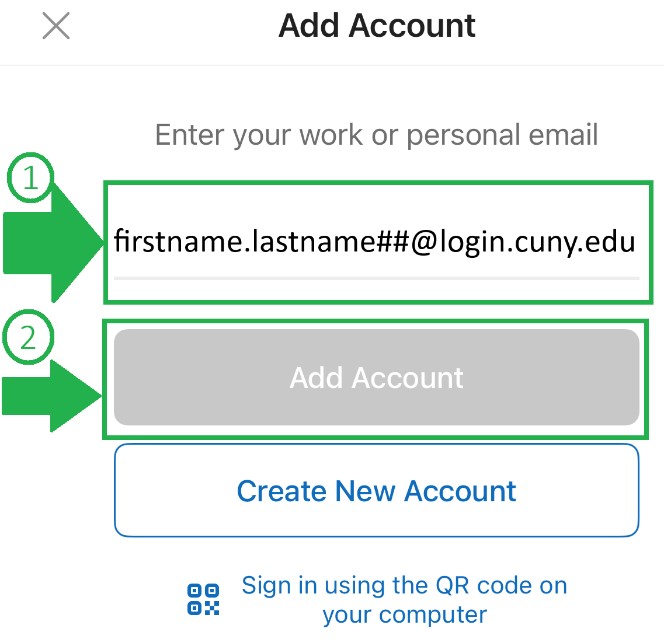
The “Add Account” screen will appear. Enter your CUNY login account  firstname.lastname##@login.cuny.edu. Click on the Add Account button.
Add New Student Email to Outlook App on iPhone Step 3

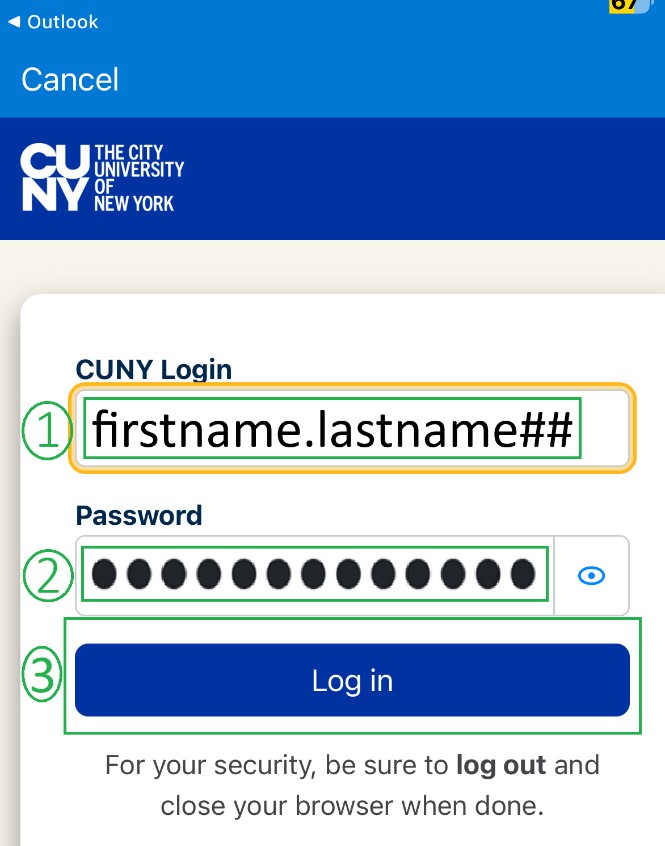
The CUNY Login screen will appear. Enter your CUNY Login account, firstname.lastname##, again with the corresponding password and click Log in.

Note: On the CUNY Login page, the “@login.cuny.edu” is optional.

Add New Student Email to Outlook App on iPhone Step 4

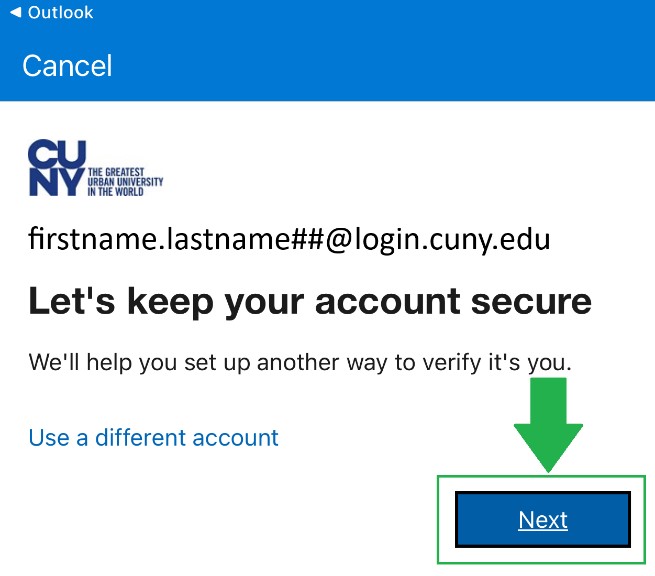
The “Let’s keep your account secure screen appears.” Click Next.

Note: If you are not seeing the screen below, (ex. the MS authenticator page will appear or you are asked to enter the codes), please join the LehmanQ so a Service Desk representative can help you reset your email MFA and finish setting up your new student email account.

Add New Student Email to Outlook App on iPhone Step 5

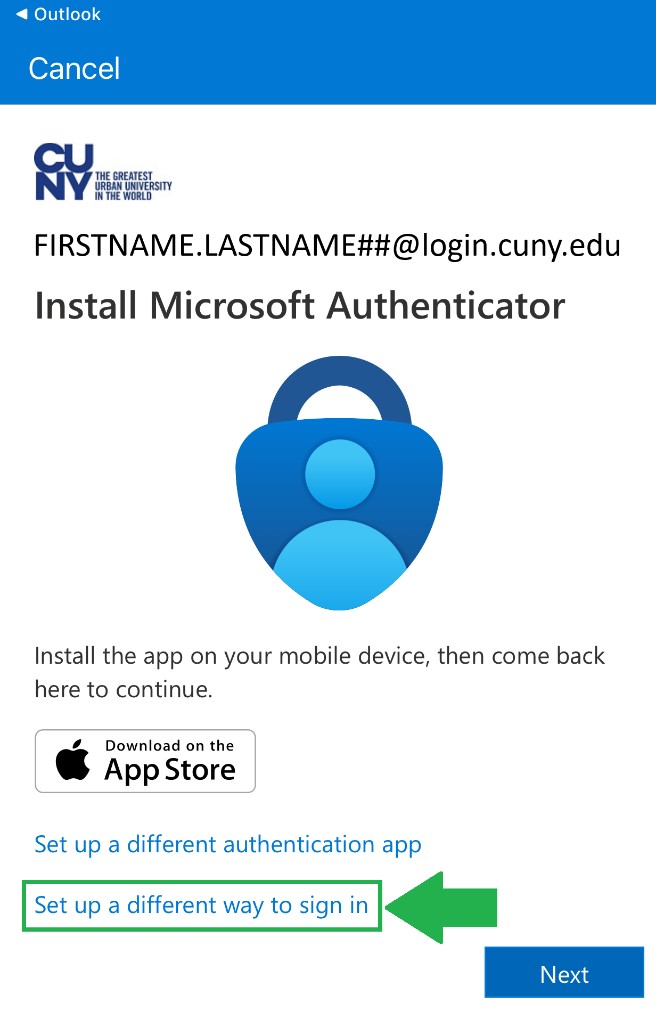
The “Install Microsoft Authenticator screen appears.”

There are three options:

  1. Install Microsoft Authenticator,
  2. Set up a different authenticator app, and
  3. Set up a different way to sign in. For this example, we will use Option #3 Set up a different way to sign in. Click Set up a different way to sign in.

Add New Student Email to Outlook App on iPhone Step 6

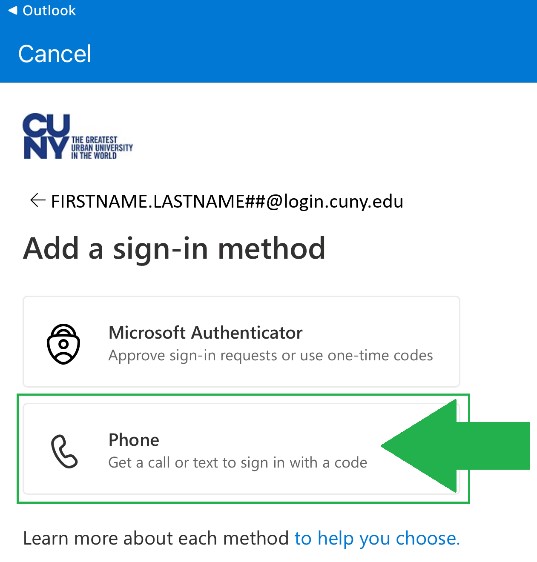
The “Add a sign-in method” screen appears.

There are two options:

  1. Microsoft Authenticator, and
  2. Phone.

NOTE: Clicking Microsoft Authenticator is the same as Option 1 above. For this example, we will use Option #2 Phone. Click on Phone.

Add New Student Email to Outlook App on iPhone Step 7

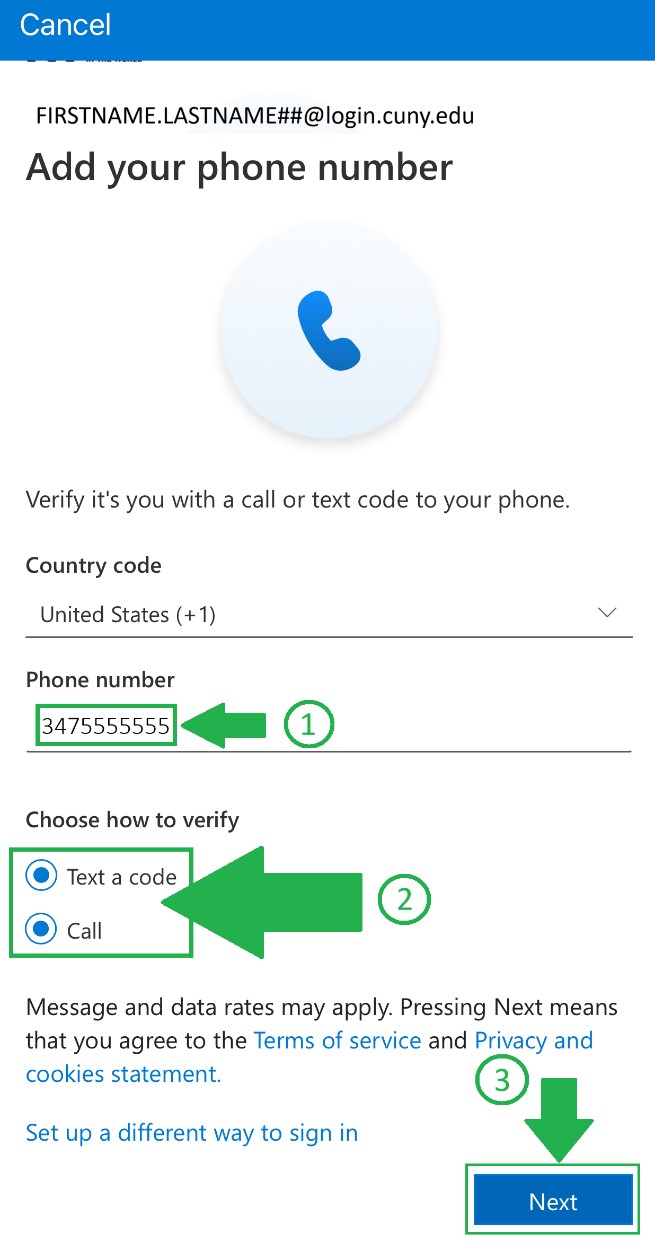
On the “Add your phone number screen," enter your phone number. In the Choose how to verify section, select among the two options, either Text a code or Call, and click Next.

Add New Student Email to Outlook App on iPhone Step 8


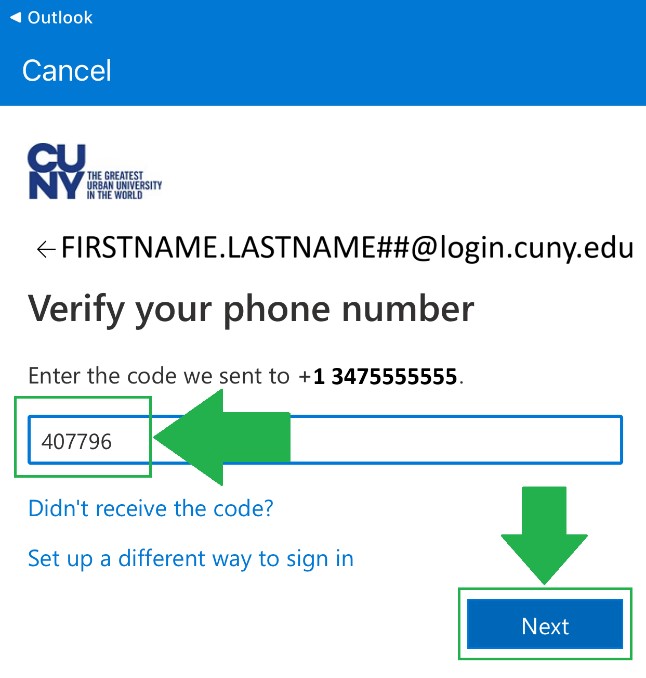
  1. Option 1: Text a code.
    1. On the Verify your phone number screen, enter the code from your text messages in the mobile device listed in the prior step and click Next.
      Add New Student Email to Outlook App on iPhone Step 8a

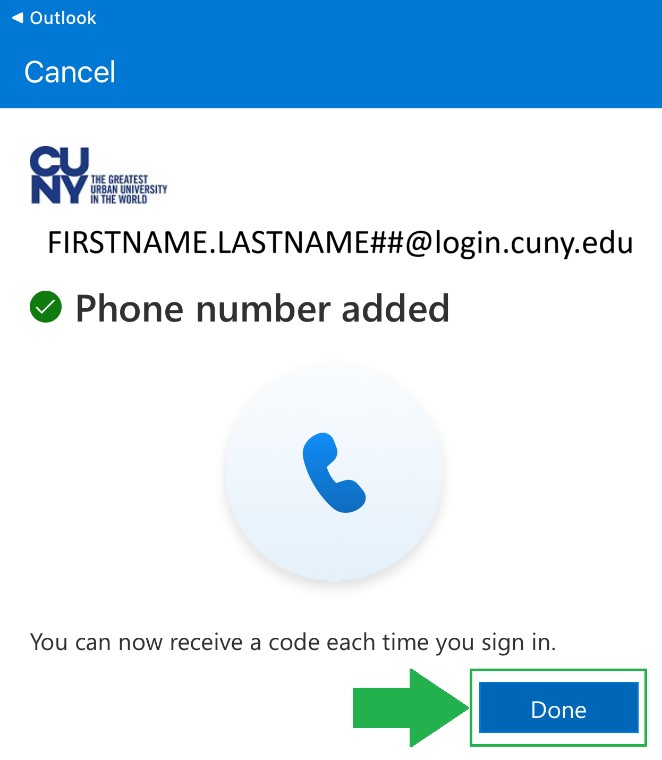
    2. You will get a “Phone number added” message. Click Done.
      Add New Student Email to Outlook App on iPhone Step 8b

    1. Option 2: Call.
      1. You will receive a phone call on the listed number.
      2. Pick up the call, listen to the message and hit the “#” sign.

Your new student email is set up and appears below your previous lc.cuny.edu email with your CUNY username firstname.lastname##@login.cuny.edu. Your new email is firstname.lastname##@stu-mail.lehman.cuny.edu.

NOTE: Your previous lc.cuny.edu email will be turned off at the end of Spring 2026 Semester.

Add New Student Email to Outlook App on iPhone Step 9