






How to Add Your New Student Email to the Outlook App Desktop (Windows)

Before You Begin

On your mobile device, download and install the Microsoft Authenticator App from the AppStore or Google PlayStore.
How to Add Your New Student Email to the Outlook App Desktop Windows-Before step1

Note: The Student Email requires a Multi-Factor Authentication method such as Microsoft Authenticator, a different authenticator app, or your phone with an active phone number. Please make sure to have your mobile device available. Also, if you would like to continue using the Microsoft Authenticator or a different authenticator app, we recommend that the student email is set up first on another device other than your personal phone.

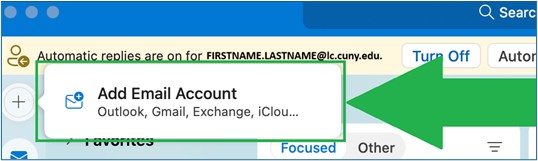
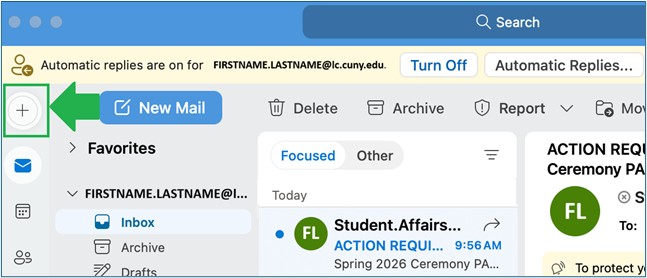
  1. Click on the + button on the top left.
    How to Add Your New Student Email to the Outlook App Desktop Windows step1

Click on add email account.

How to Add Your New Student Email to the Outlook App Desktop Windows step2


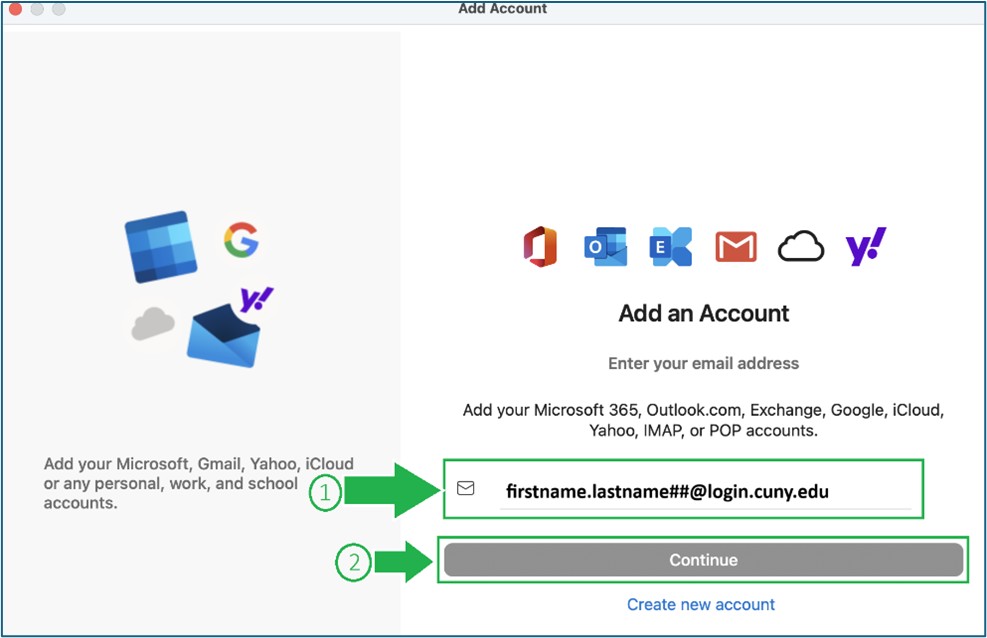
The "Add Account" window will appear. Enter your CUNY login account firstname.lastname##@login.cuny.edu and click on the Continue button.
How to Add Your New Student Email to the Outlook App Desktop Window Step3s

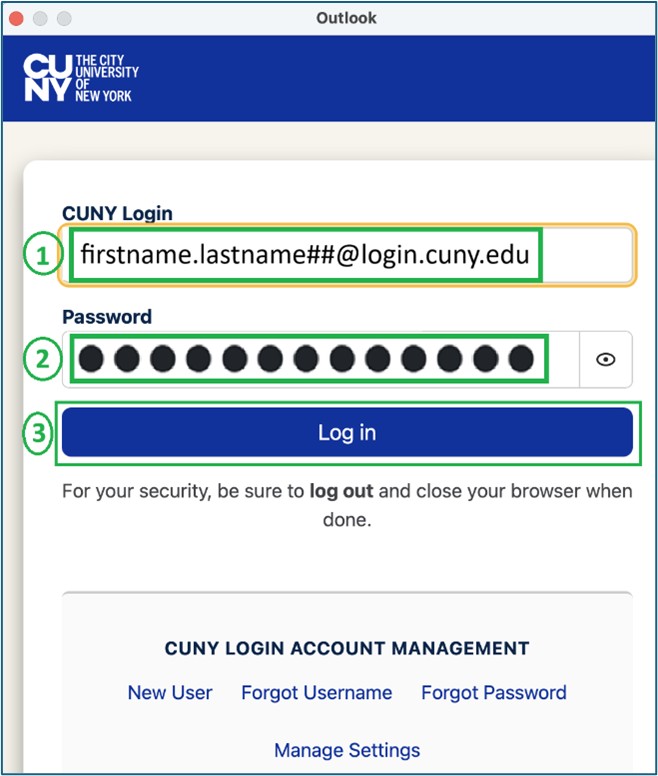
The CUNY Login screen will appear. Enter your CUNY Login account, firstname.lastname##, again with the corresponding password and then click Log in.

Note: On the CUNY Login page, the “@login.cuny.edu” is optional.

How to Add Your New Student Email to the Outlook App Desktop Windows Step4

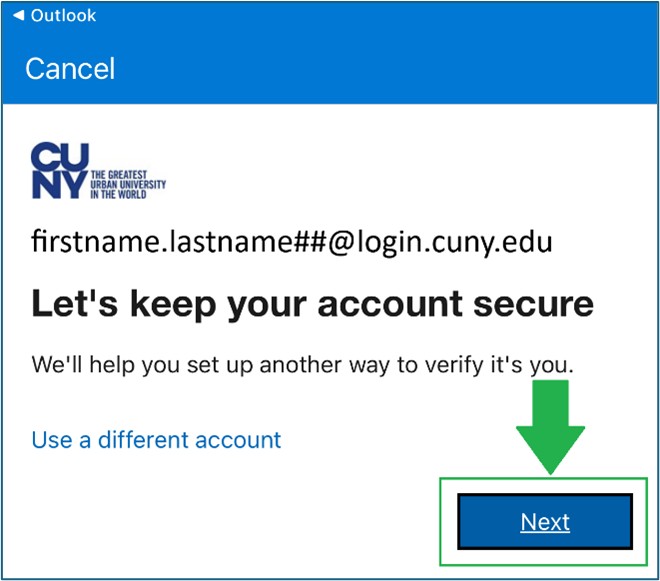
The “Let’s keep your account secure screen appears.” Click Next.

Note: If you are not seeing the screen below, (ex. the MS authenticator page will appear or you are asked to enter the codes), please join the LehmanQ so a Service Desk representative can help you reset your email MFA and finish setting up your new student email account.

How to Add Your New Student Email to the Outlook App Desktop Windows Step5

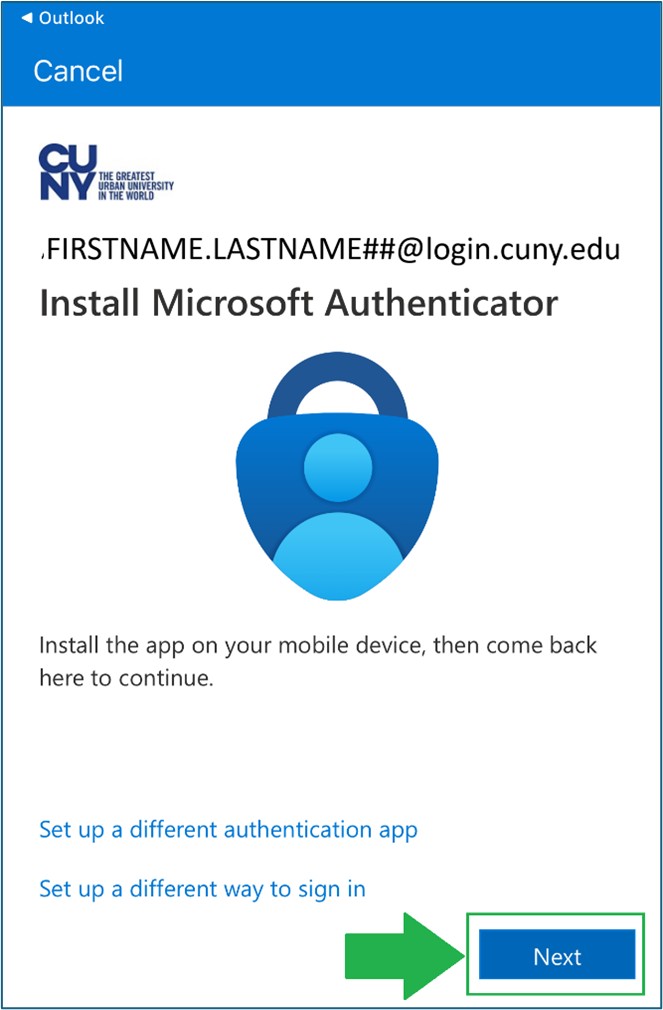
The Install Microsoft Authenticator screen appears.

There are three options:

  1. Install Microsoft Authenticator
  2. Set up a different authenticator app, and
  3. Set up a different way to sign in. For this example, we will go with Option #1 Install Microsoft Authenticator. Click Next.

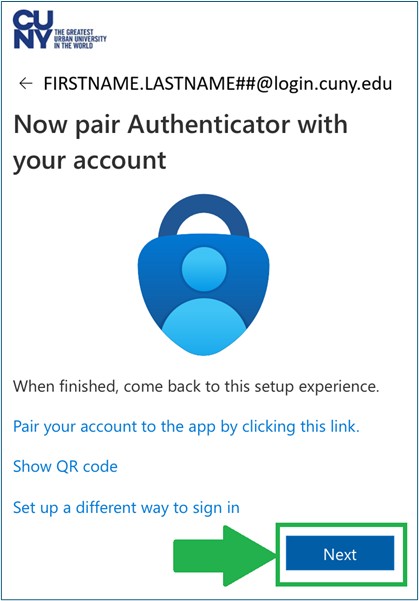
How to Add Your New Student Email to the Outlook App Desktop Windows Step6

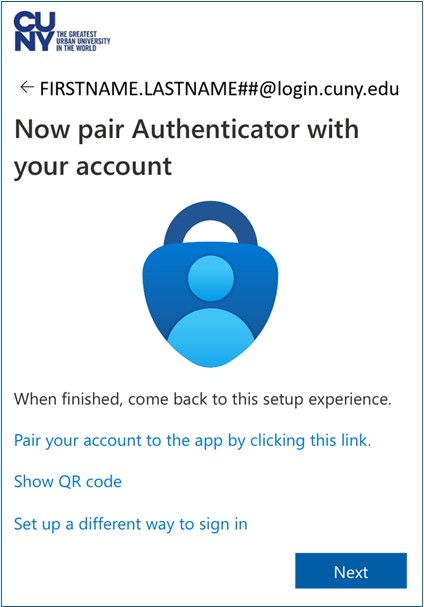
The Now pair Authenticator with your account screen appears. You will work on your mobile device and come back to this.

How to Add Your New Student Email to the Outlook App Desktop Windows Step7

On your mobile device

  • Open the Microsoft Authenticator. At the top right, click on the + icon.
  • Click on work or school account.
  • Click on Scan QR code.


Go back to your Windows device, click Next.

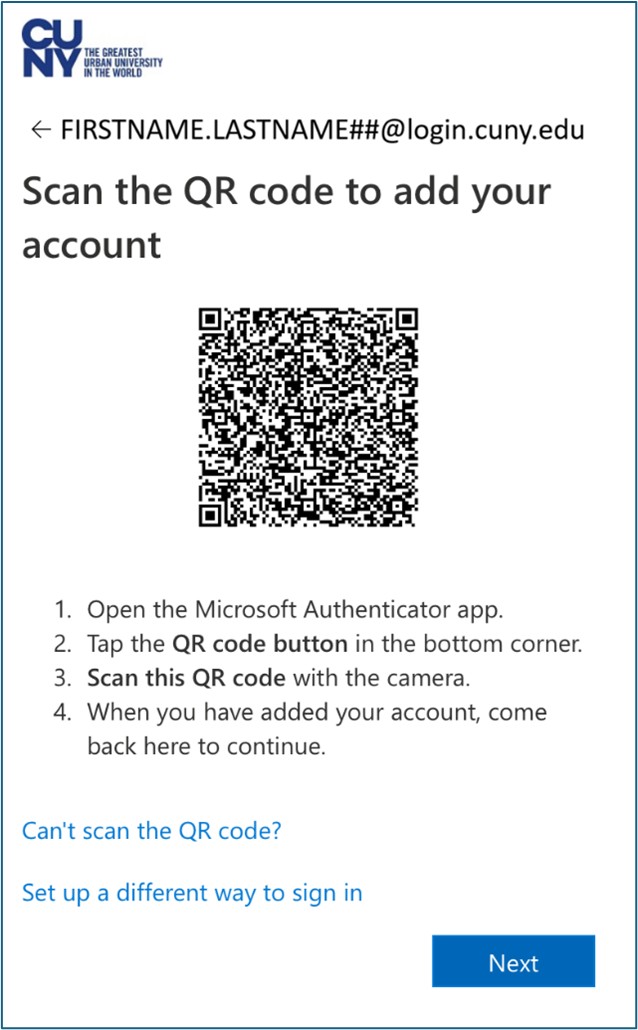
How to Add Your New Student Email to the Outlook App Desktop Windows Step9

The "Scan the QR code" to add your account screen appears. We will now use your mobile device and come back here to continue shortly.

How to Add Your New Student Email to the Outlook App Desktop Windows Step10

On your mobile device:

  1. Open the Microsoft Authenticator app.
  2. Tap the QR code button in the bottom right corner.
  3. Scan this QR code with the camera.
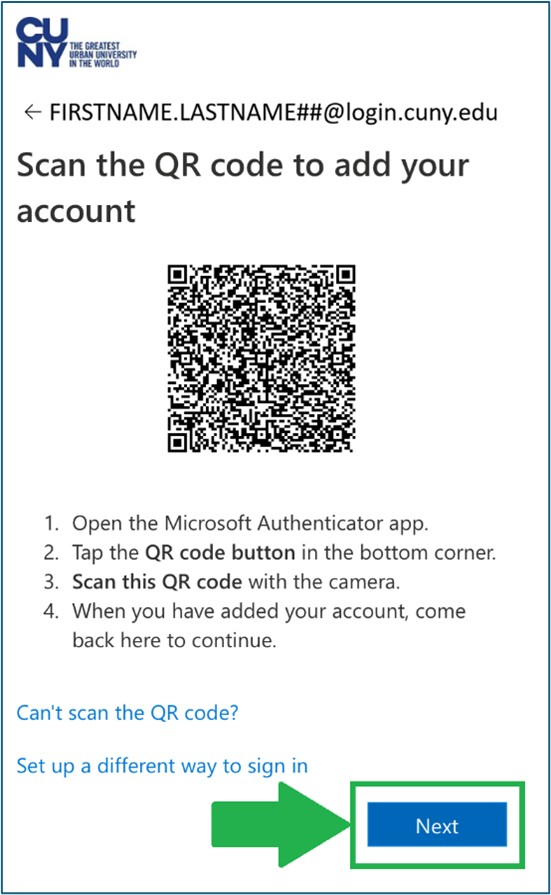
  4. When you have added your account, go back to your ipad or iMac.

On the "Scan the QR code" to add your account screen, click Next.

How to Add Your New Student Email to the Outlook App Desktop Windows Step12

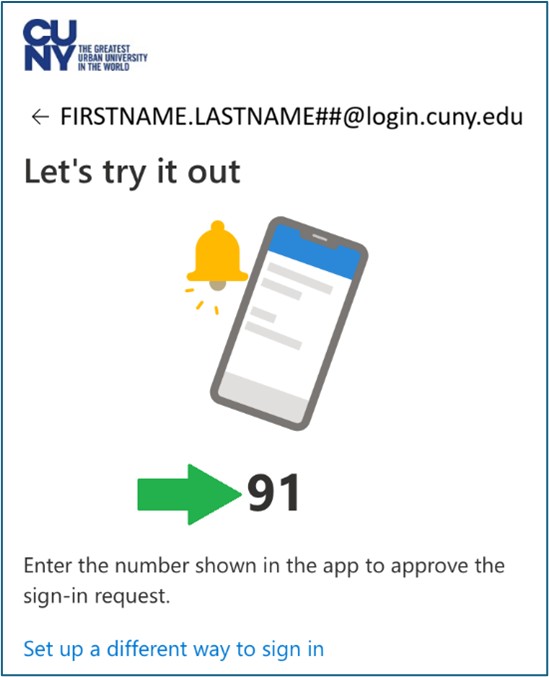
The "Let’s try it out" screen appears.

How to Add Your New Student Email to the Outlook App Desktop Windows Step13

On your mobile device, the Microsoft Authenticator app will pop up, enter the number shown (Ex. 91). Go back to your ipad or iMac.


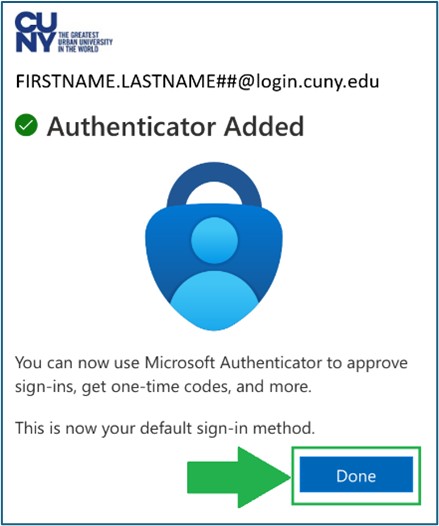
The Authenticator Added screen appears. Click Done.

How to Add Your New Student Email to the Outlook App Desktop Windows Step15

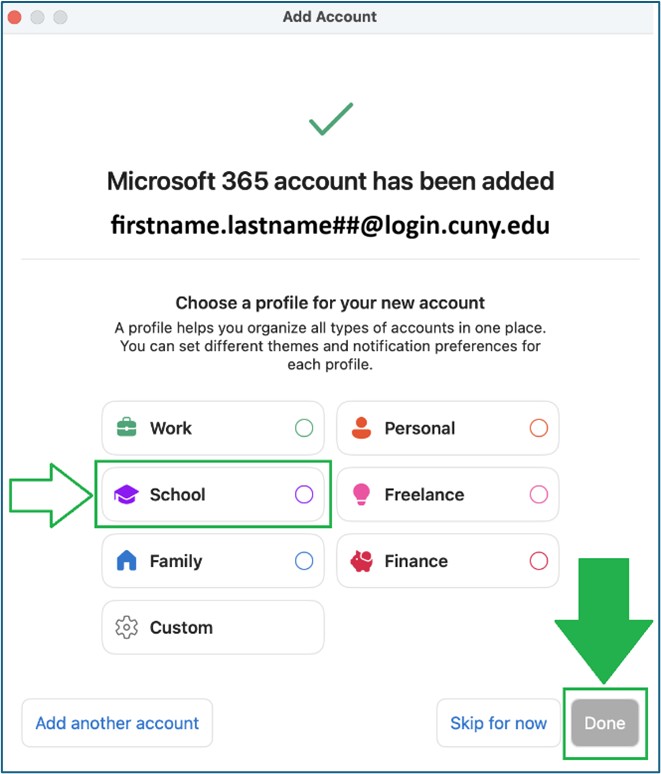
On your computer, the “Microsoft 365 account has been added” message appears on the Add Account screen. Feel free to choose a profile for your new student email account, such as School then click “Done.”

How to Add Your New Student Email to the Outlook App Desktop Windows Step step16

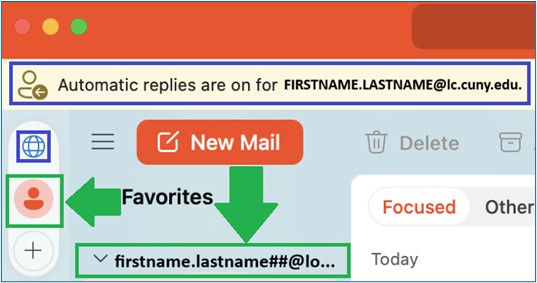
Your new student email account is set up and appears in Outlook with your CUNY username firstname.lastname##@login.cuny.edu. In the example below, in the Accounts section on the top left corner of the screen, the red icon denotes the new email. The globe icon is the previous lc.cuny.edu email account. Your new email is firstname.lastname##@stu-mail.lehman.cuny.edu.

NOTE: Your previous lc.cuny.edu email will be turned off at the end of Spring 2026 Semester.

How to Add Your New Student Email to the Outlook App Desktop Windows Step17


NOTE: You will always have to sign in with your CUNY credentials (firstname.lastname##@login.cuny.edu) no matter what your campus email is set as. You will receive all emails from all your associated emails to this CUNY Login mailbox.