






How to Sign In to Your New Student Email Using Outlook on the Web

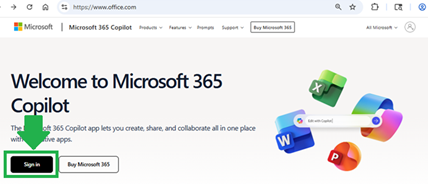
Go to www.office.com and click Sign in.
Step 1 - Sign into Outlook in Office 365 on the Browser

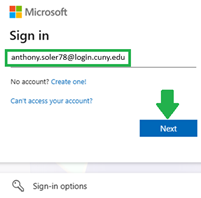
On the Microsoft Sign in screen, enter your CUNY Login account firstname.lastname##@login.cuny.edu and click Next.
Step 2 - Sign into Outlook in Office 365 on the Browser

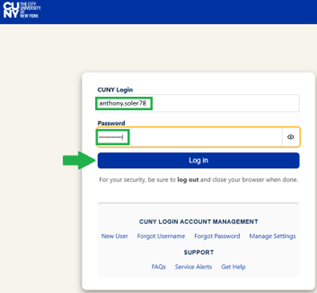
The CUNY Login screen will appear. Enter your CUNY Login account, "firstname.lastname##", again with the corresponding password and then click Log in.

Note: On the CUNY Login page, the “@login.cuny.edu” is optional.
Step 3 - Sign into Outlook in Office 365 on the Browser

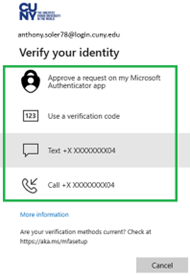
The Multi-Factor Authentication (MFA) Verify Your Identity window will pop up. Please click on the method of verification. 

Step 4 - Sign into Outlook in Office 365 on the Browser

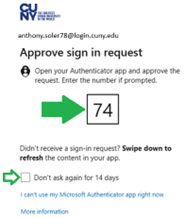
  1. Ex. #1 Approve a request on my Microsoft Authenticator app verification is selected. The Approve Sign In Request window will pop up. Please follow the instructions and enter the number in your Authenticator app on your mobile device.
    Note: Click on “Don’t ask again for 14 days” if this is your device. Please leave it unchecked if you are sharing this device or this is a public device.

    Step 4a - Sign into Outlook in Office 365 on the Browser

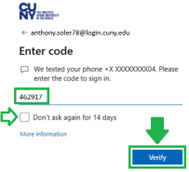
  2. Ex. #2 Text verification is selected. The Multi-Factor Authentication (MFA) Enter Code window will pop up. Please enter the method of verification and click Verify. (Ex. Text verification is selected).
    Note: Click on “Don’t ask again for 14 days” if this is your device. Please leave it unchecked if you are sharing this device or this is a public device.

    Step 4b - Sign into Outlook in Office 365 on the Browser

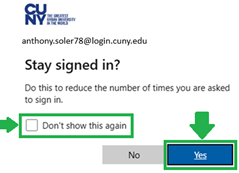
The "Stay Signed In" window will pop up. Click on “Don’t show this again” and Yes.

Step 5 - Sign into Outlook in Office 365 on the Browser

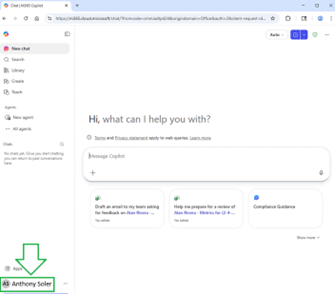
The M365 page appears. Your name and initials appears at the bottom left.

Step 6 - Sign into Outlook in Office 365 on the Browser

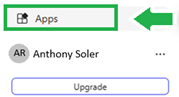
Click on Apps.

Step 7 - Sign into Outlook in Office 365 on the Browser

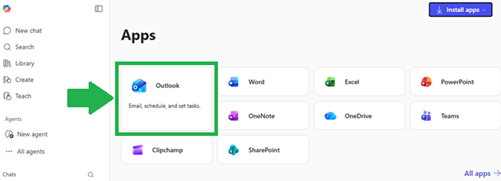
The Apps page appears. Click on Outlook.

Step 8 - Sign into Outlook in Office 365 on the Browser

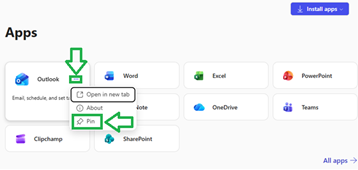
  1. Note: Outlook can be pinned to the left-hand column. Hover over the top-right and click on the three dots. Click on Pin.

    Step 8a - Sign into Outlook in Office 365 on the Browser

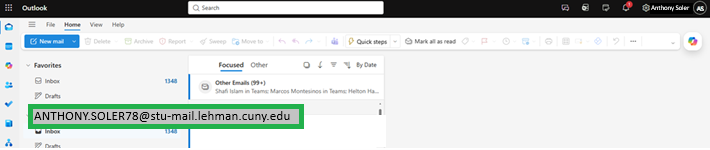
Outlook appears on a new tab. Your new student email is set up. Your name and initials will appear at the top right. Your new email account will be listed. Your new email is lastname##@stu-mail.lehman.cuny.edu.

NOTE: Your previous lc.cuny.edu email will be turned off at the end of Spring 2026 Semester.

Step 9 - Sign into Outlook in Office 365 on the Browser

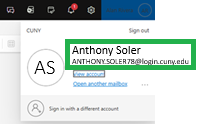
  1. Note: If you click on the top right of your name, your CUNY Login Account will display.

    Step 9a - Sign into Outlook in Office 365 on the Browser

NOTE: You will always have to sign in with your CUNY credentials (firstname.lastname##@login.cuny.edu) no matter what your campus email is set as. You will receive all emails from all your associated emails to this CUNY Login mailbox.