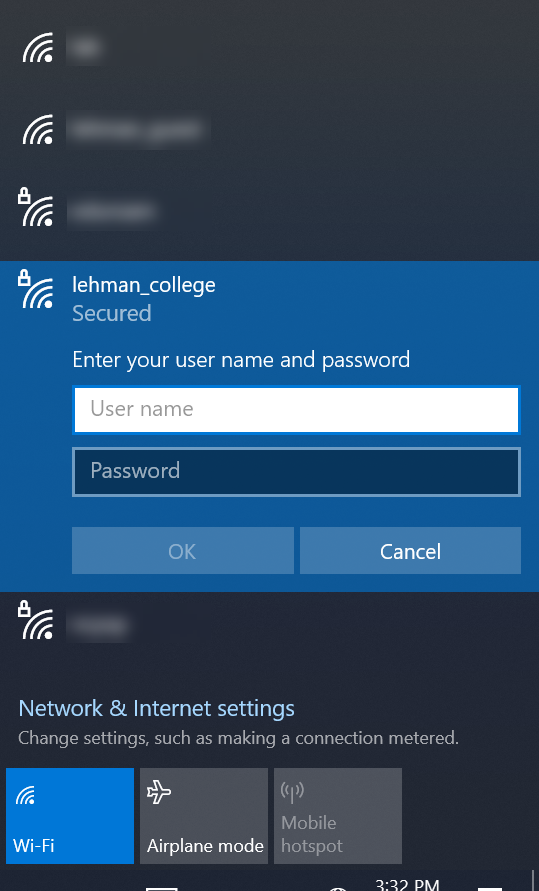
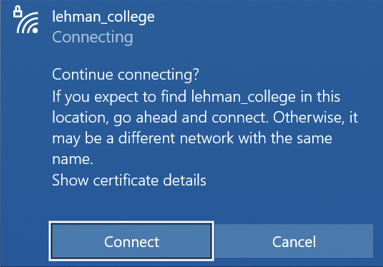
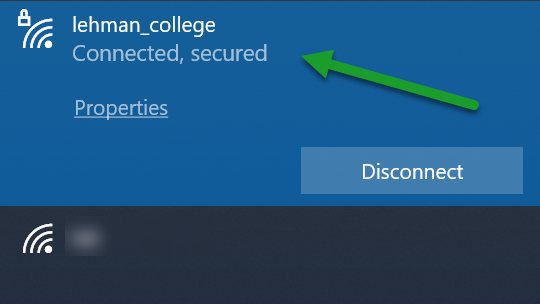
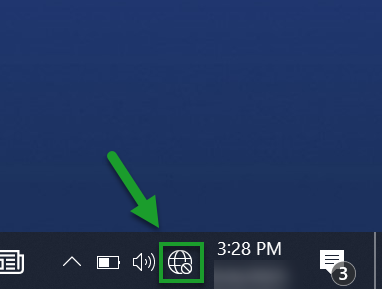
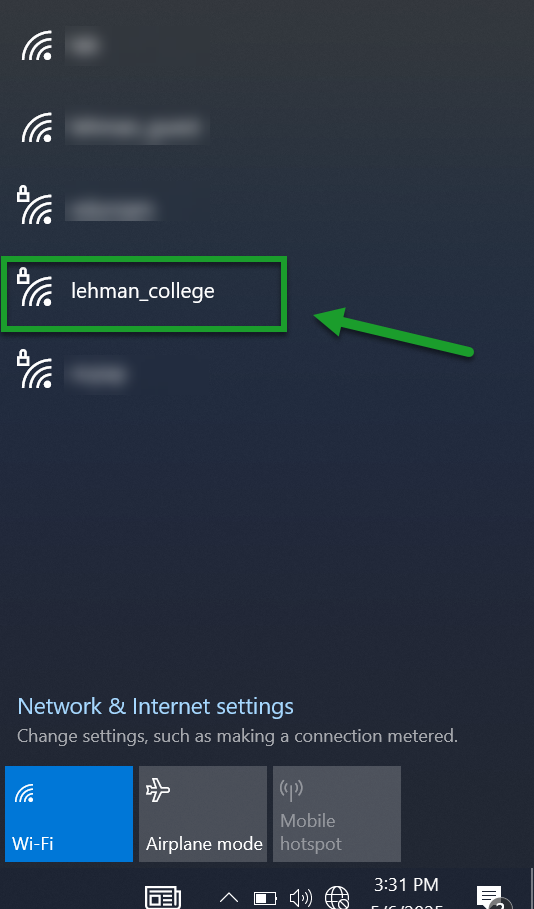
On your Windows 10 device, in the bottom-right corner of your screen, click the Globe (Network) icon on the taskbar.
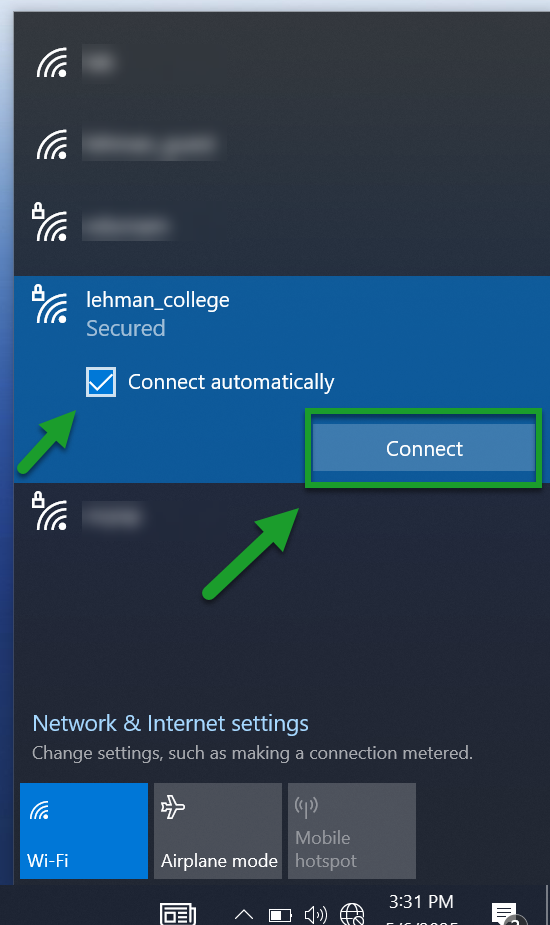
Click the lehman_college network from the list displayed, tick the Connect automatically checkbox, and click Connect.

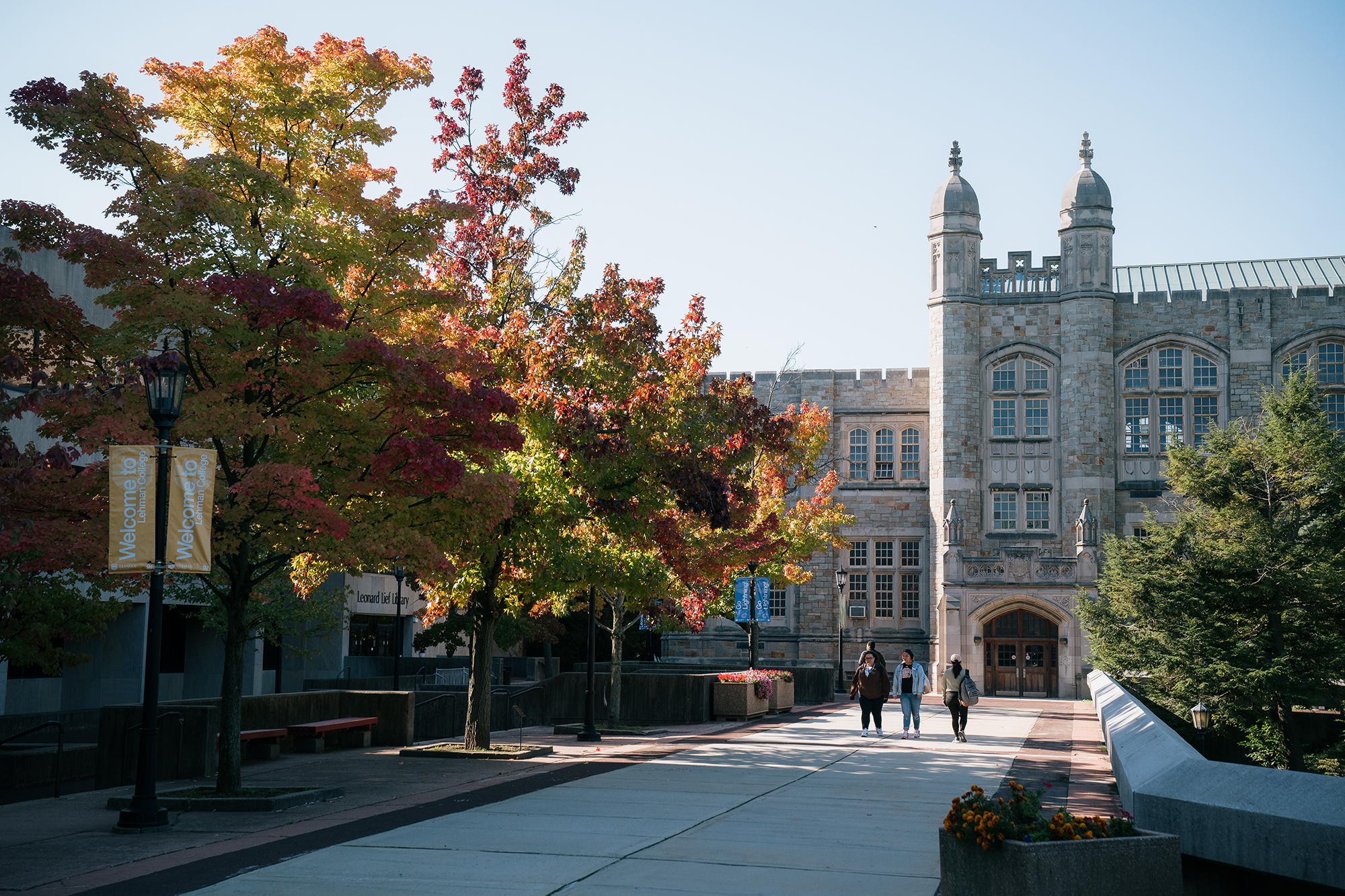
With six schools offering dozens of majors and minors, students have infinite possibilities to determine their future.
About Lehman
Administration
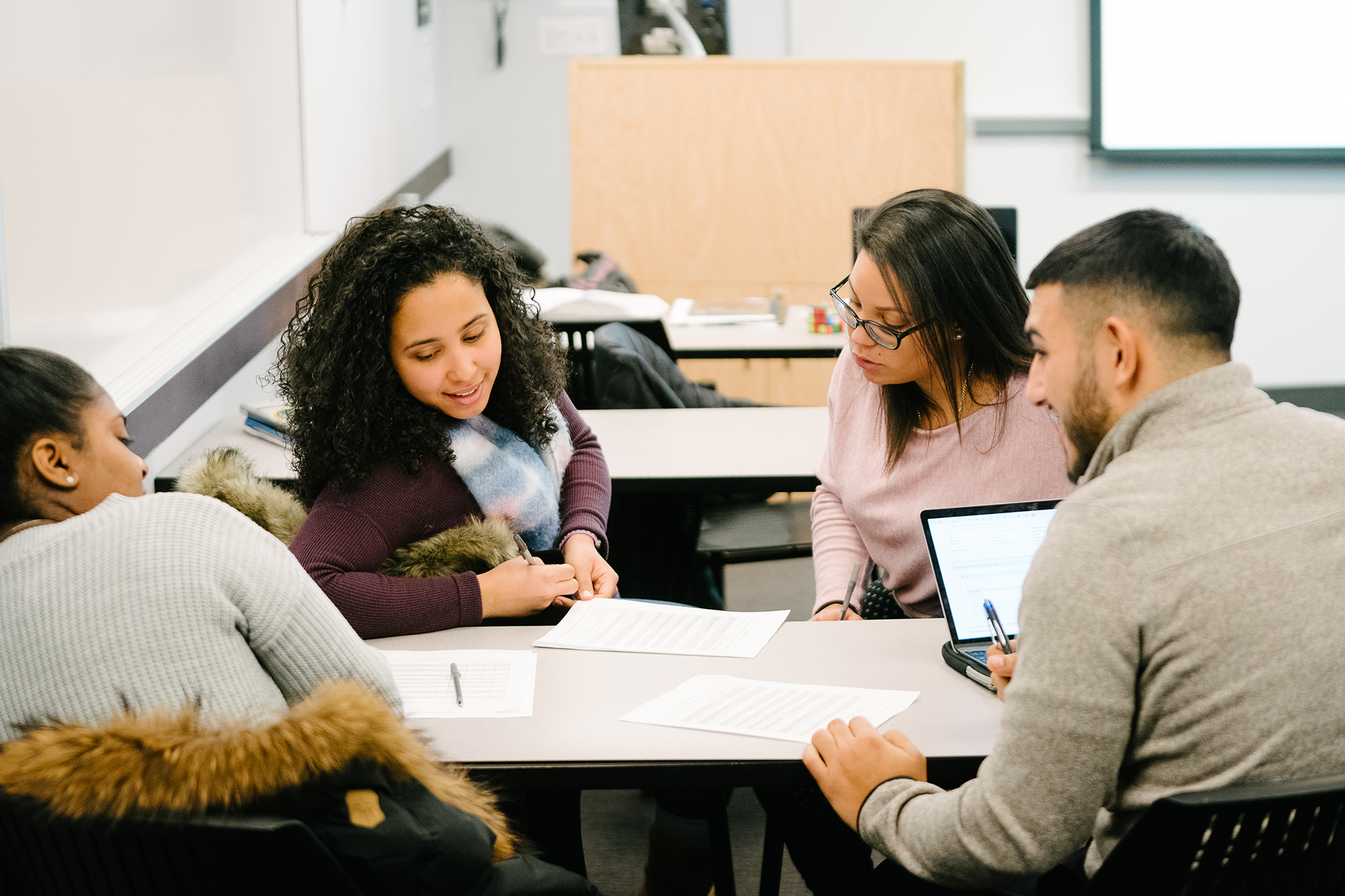
Undergraduate, Graduate, and Adult Learners can all find a place to learn and grow at Lehman.
Schools
Learning at Lehman
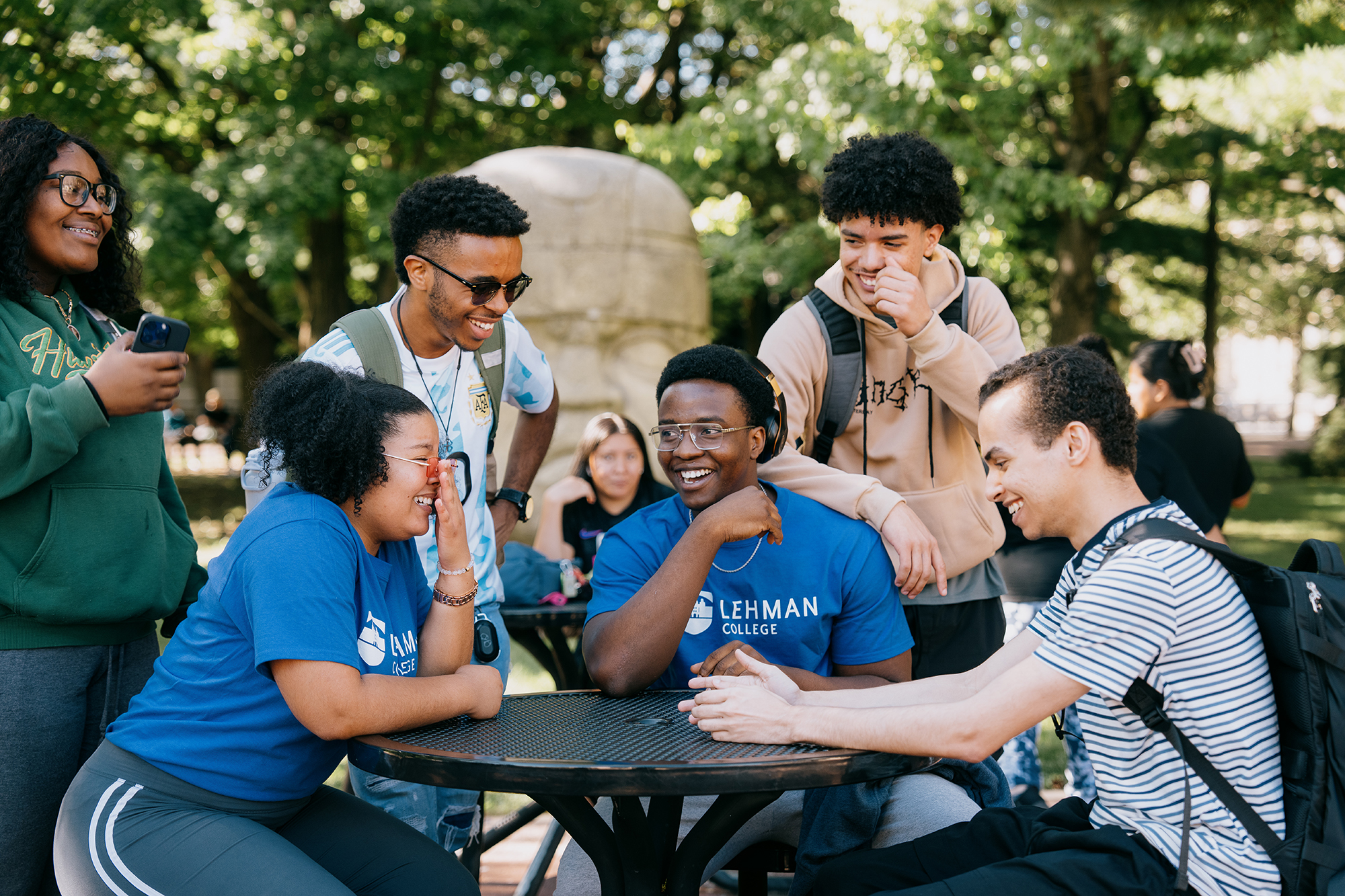
Our admissions advisors are here to answer your questions and guide you each step of the way.
Getting Started
Undergraduate

Expand and extend your skills to advance your career or open new opportunities.
Arts & Humanities
Natural and Social Sciences
Health Sciences, Human Services and Nursing
Continuing & Professional Studies

From clubs, athletics, and cultural events, to academic, mental health, and social support, Lehman has you covered.
Campus Community
Student Services
Health & Wellness

Be the star or attend a great performance.
Music & Performing Arts
Visual Arts
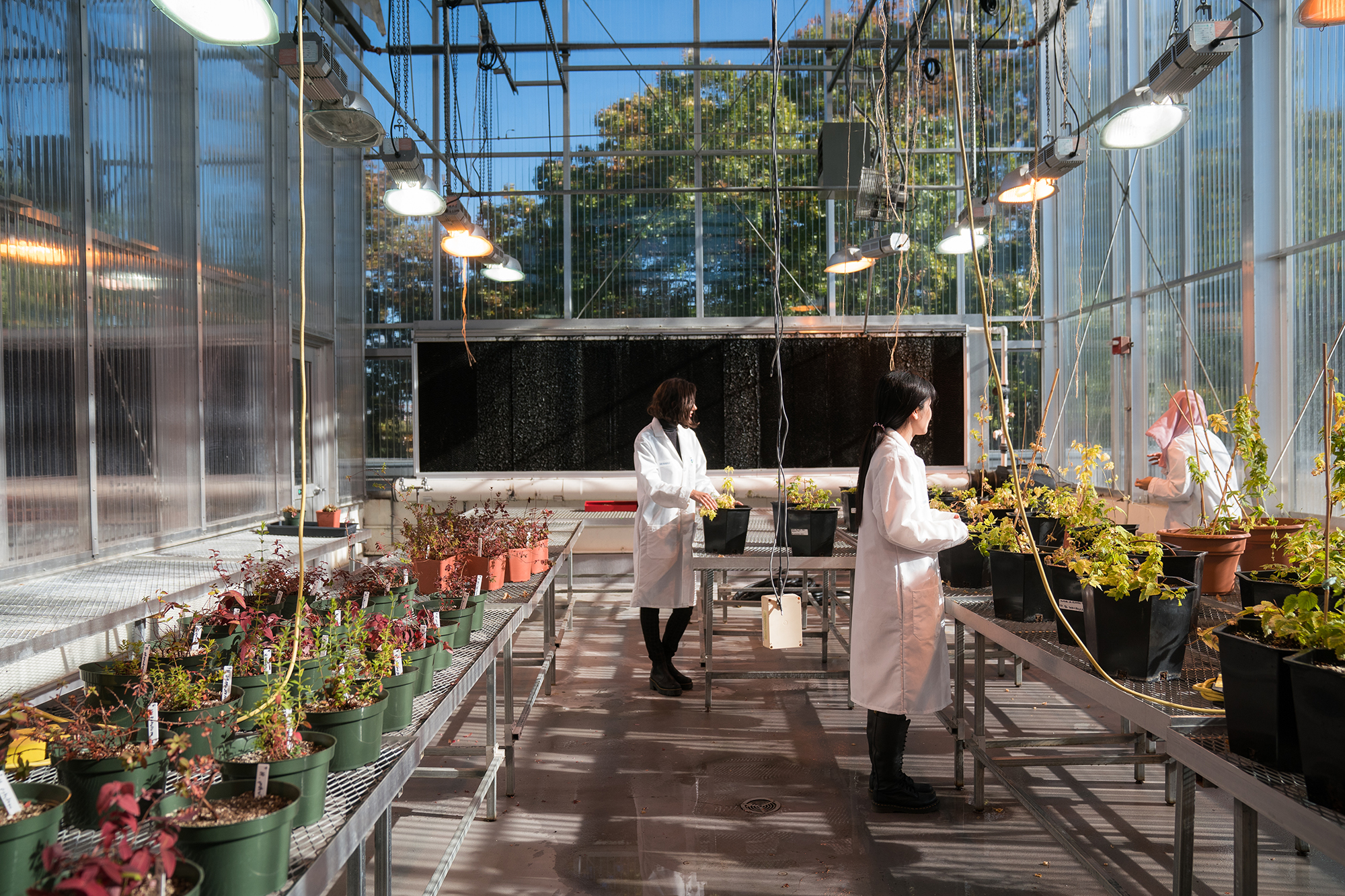
Working with their students, dozens of faculty receive millions of dollars in research grants.
Student & Faculty Research
Objective:
To guide users through the process of configuring the Campus Wireless Network in their Windows 10 device.
Prerequisite: prior Lehman Login Account activation required. Refer to this article to learn how to activate your account.