





Resetting Your Lehman Login Password Using Security Questions

Objective:

This article guides users through the process of successfully resetting their forgotten Lehman Login Account Password providing the answers to the Security Questions.

Prerequisite: prior Lehman Login Account activation required. Refer to these instructions to learn how to activate your account. 

From your preferred browser, go to the self-service Lehman Login Account Manager (URL: https://managelogin.lehman.edu/).

Click on the Forgot Password section, type your Lehman Login Account Username, enter the 6-digit captcha verification code shown. Click on Continue.
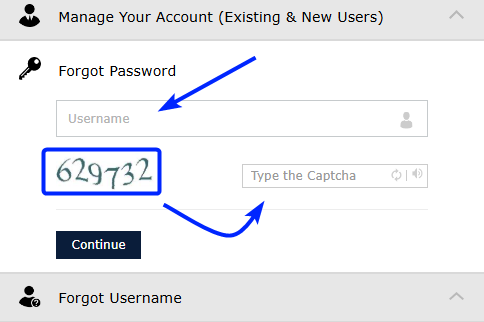
Resetting Your Lehman Login Password Using Security Questions - Step 2

Select Security Questions, and click on Continue.
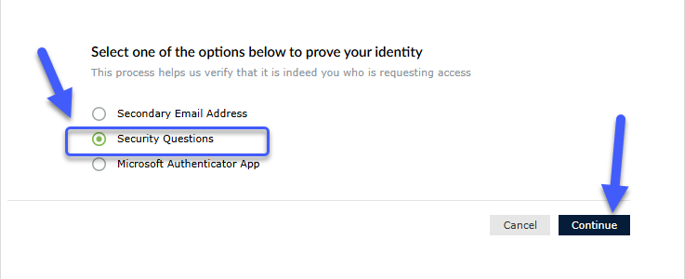
Resetting Your Lehman Login Password Using Security Questions - Step 3

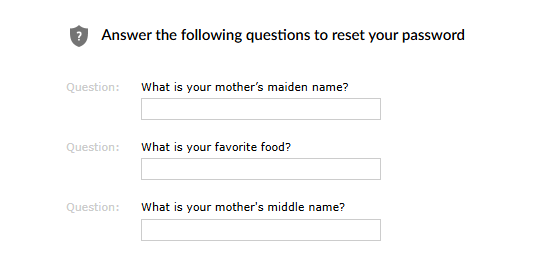
Answer 3 of your previously registered Security Questions and click on Continue.

Resetting Your Lehman Login Password Using Security Questions - Step 4

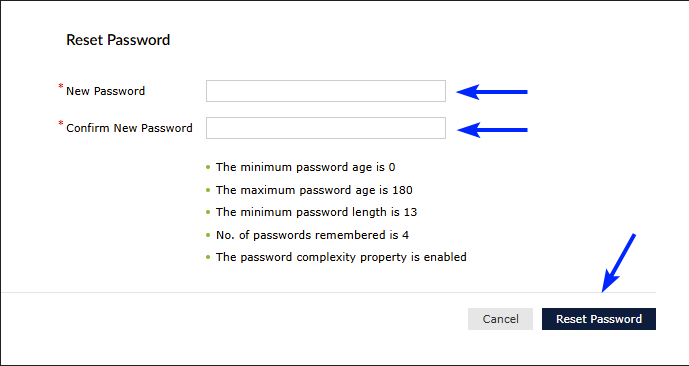
Enter and confirm your new password. Make sure your password complies with the password guidelines displayed. Click on Reset Password.

Resetting Your Lehman Login Password Using Security Questions - Step 5

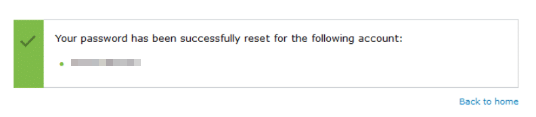
A message will be displayed confirming your password has been successfully reset. You can now use your new Lehman Login Account password where applicable.

Resetting Your Lehman Login Password Using Security Questions - Step 6