






How to Borrow a Device
Use WebCheckout to Reserve Technology Equipment for Your Academic Needs.
Go to the WebCheckout and Log-In
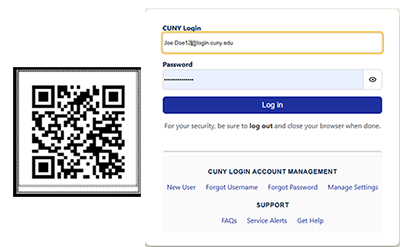
Scan the QR code below or visit this page and log in using your CUNY Login credentials.
Start a New Reservation
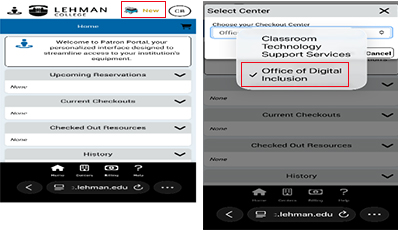
Click the New icon in the top right of the screen, then choose ODI – Office of Digital Inclusion as your checkout center to begin your request.
Create Your Reservation
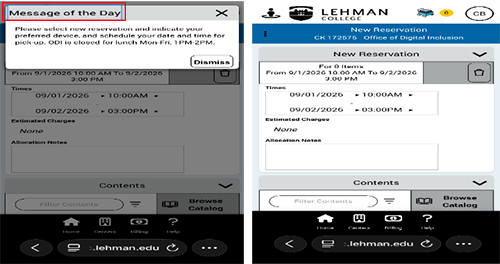
Read the Message of the Day and click Dismiss. Then, under Create Your Reservation:
- Set your reservation dates and times
- Enter the required class or event information and your delivery/pickup location
- Add notes if needed
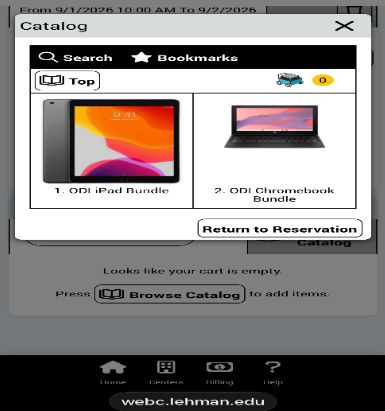
- Use "Browse Catalog" to add your selected equipment to the reservation
Select Your Device
Browse the catalog and choose the device you'd like to borrow.
Submit Your Reservation
Review the items in your cart, then click Submit Reservation.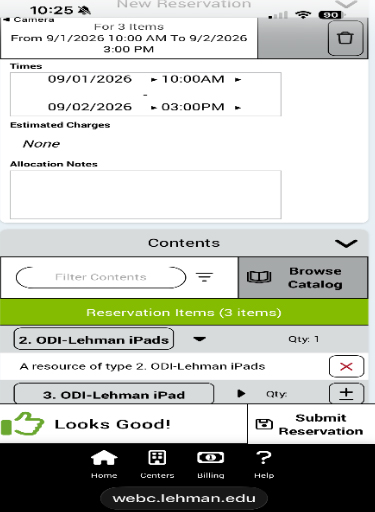
Confirm, Pick Up, and Return
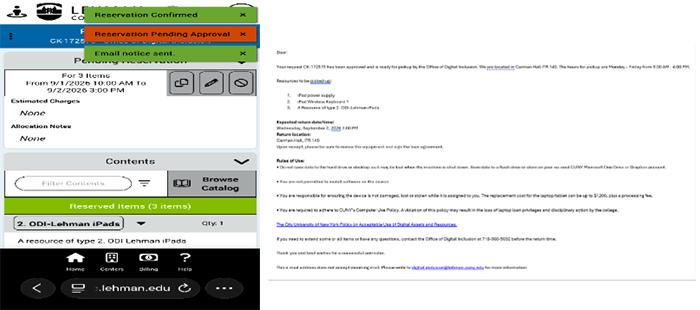
You'll receive a confirmation email at your Lehman email address once your reservation is approved. Review it carefully and complete the checkout.
- Bring your Lehman College ID when you pick up the device
- Check that the equipment and all accessories are correct before leaving
- Keep everything together and return the device by the due date and time shown in WebCheckout
Quick Tips |
|
|---|---|
| Before and During Pickup | Bring your Lehman College ID badge. Verify the device and all accessories are correct. |
| Return on Time |
Return the device and accessories by the date/time listed in WebCheckout. Report lost, stolen, damaged, or malfunctioning equipment immediately. |
| Need Help? |
Contact the ODI office if you have questions about your reservation or equipment digital.inclusion@lehman.cuny.edu If you need help with your device, please setup an appointment with LehmanQ.
|
| Note: WebCheckout screens may change as the service is updated. Follow the options displayed on the current WebCheckout site. | |